Appromove›BlogBlog›Minecraft VR with your phoneMinecraft en VR con tu móvil
Tutorial
How to play Minecraft in Virtual Reality using your phone (Android & iOS)
Your phone as a VR headset, your webcam as a controller — walk, jump and look around Minecraft with your real body. No keyboard, no expensive hardware.
PyCraftingMarch 24, 20266 min readTutorial · Gaming
Tutorial
Cómo jugar Minecraft en Realidad Virtual usando tu Móvil (Android & iOS)
Tu móvil como visor de VR, tu webcam como controlador — camina, salta y mira a tu alrededor en Minecraft con tu cuerpo real. Sin teclado, sin hardware caro.
PyCrafting24 de marzo de 20266 min de lecturaTutorial · Gaming
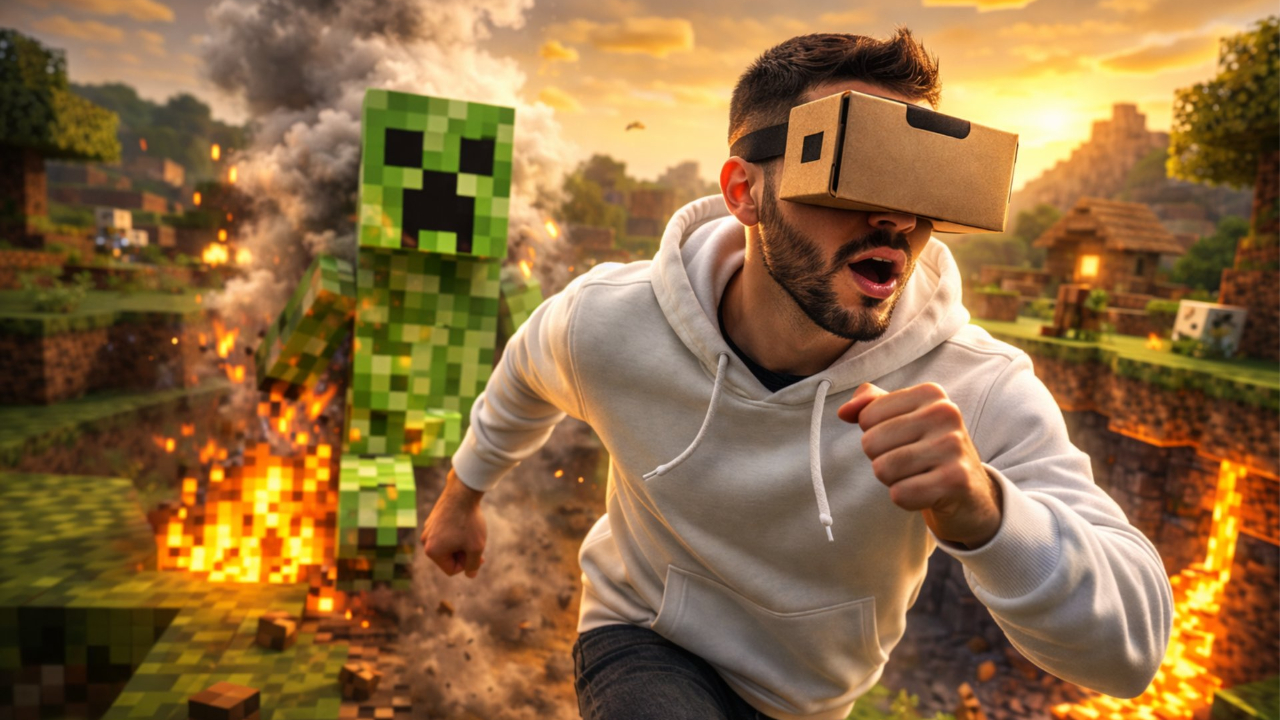
Imagine playing Minecraft in VR mode — actually walking in place, jumping with your whole body, turning around to look at the landscape — using nothing but a webcam and your movements. No expensive hardware, no special gloves, no sensors.
It sounds like something out of a futuristic tech demo. But it's real, it works today, and you can set it up in minutes. Here's how it works — from the ground up.
The core idea: mapping movement to keystrokes
The fundamental concept is simple: a program watches your webcam in real time and, when it detects you moving, it simulates a key press on your keyboard. The game never knows the difference — as far as Minecraft is concerned, someone is pressing W or Space.
The algorithm compares two consecutive frames from your camera. If enough pixels have changed between them — meaning your body moved — it registers that as motion and acts accordingly.
Two thresholds define how the system behaves:
Walking threshold: any medium-sized movement triggers the W key (move forward)
Jump threshold: a large, fast movement — like an actual jump — triggers Space
💡 Tip: The green line you see in the demo video marks the jump threshold. Cross it with a big movement and the game registers a jump.
What you need
The hardware requirements are genuinely minimal:
Any webcam — even a basic 720p works fine
A smartphone (Android or iPhone) for the VR headset
A cardboard VR headset (a few euros on Amazon, or DIY with a box)
Appromove — free download for Windows 10/11
💡 Tip: You don't need to write any code. Appromove handles all the body detection and key mapping through a visual interface.
Taking it further: DIY VR mode
Once you have body movement controlling the game, you can add one more layer: a VR headset. And it doesn't need to be expensive.
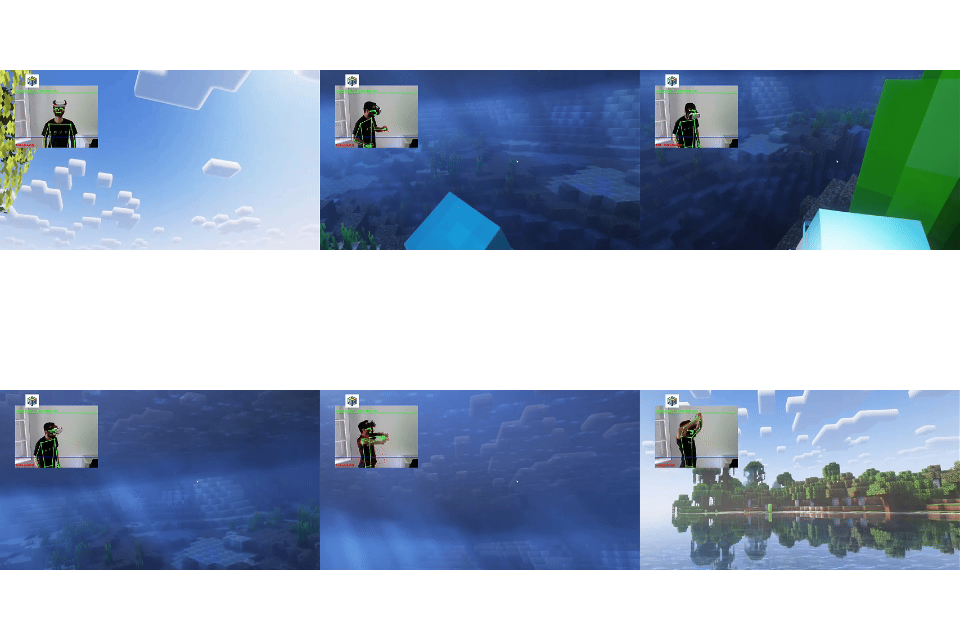
🎬GIF — VR mode demo: player wearing DIY headset, moving in Minecraft
A cardboard headset (like Google Cardboard) with your smartphone can stream your PC screen in split-screen VR format. On Android, apps like Trinus VR handle this automatically. The result: you turn your head and look around Minecraft while your body controls movement.
Why Appromove makes it effortless
With Appromove, body detection just works — no calibration scripts, no threshold tuning, no lighting fights. You open the app, point your webcam, and it instantly recognises your body posture, gestures and movements. Everything translates into game inputs in real time.
With Appromove you can map any body movement to any key or mouse action — walk in place to move forward, jump for an in-game jump, crouch, raise an arm to attack, tilt your head to rotate the camera. The configuration takes a few minutes inside the app's visual interface, and once it's done your room becomes a VR zone: open Minecraft, put on your headset and start moving.
If you want to understand what's going on under the hood — or build your own version — the core is surprisingly simple. OpenCV (Open Source Computer Vision Library) lets you grab frames from any webcam and compare them pixel by pixel.
The basic idea is frame subtraction: take two consecutive frames, convert them to grayscale, and compute the absolute difference. Where pixels have changed, something moved. Apply a threshold to ignore noise, then count the changed pixels. If the total exceeds a value you define — that's your action trigger.
# Pseudocode — the core idea
gray1 = grayscale(frame1)
gray2 = grayscale(frame2)
diff  = abs(gray1 - gray2)
mask  = diff > THRESHOLD      # pixels that changed
score = count(mask)           # how many pixels moved

if score > WALK_THRESHOLD: press("W")
if score > JUMP_THRESHOLD: press("Space")
That's roughly it. The challenge is tuning the thresholds, handling lighting changes, and deciding which region of the frame to monitor. If you're curious to experiment, the libraries are opencv-python and keyboard — just a pip install away.
Collaborate with us
A game you want supported, feedback on Appromove, or a VR setup you want to share — we're all ears.
✓ Got it! We'll get back to you soon.
Imagina jugar Minecraft en modo VR — caminando en el sitio de verdad, saltando con todo tu cuerpo, girando para mirar el paisaje — usando nada más que una webcam y tus movimientos. Sin hardware caro, sin guantes especiales, sin sensores.
Parece algo de una demo tecnológica futurista. Pero es real, funciona hoy, y puedes configurarlo en minutos. Así es cómo funciona.
La idea central: convertir movimiento en teclas
El concepto fundamental es simple: un programa observa tu webcam en tiempo real y, cuando detecta que te mueves, simula una pulsación de tecla en tu teclado. El juego nunca nota la diferencia — para Minecraft, alguien está presionando W o Space.
🎬GIF — Detección de movimiento visualizada: comparación de frames
El algoritmo compara dos frames consecutivos de tu cámara. Si suficientes píxeles han cambiado entre ellos — es decir, tu cuerpo se movió — registra ese movimiento y actúa en consecuencia.
Dos umbrales definen cómo se comporta el sistema:
Umbral de caminar: cualquier movimiento mediano activa la tecla W (avanzar)
Umbral de salto: un movimiento grande y rápido — como un salto real — activa Space
💡 Consejo: La línea verde que ves en el demo marca el umbral del salto. Supérala con un movimiento grande y el juego registra un salto.
Lo que necesitas
Los requisitos de hardware son sorprendentemente mínimos:
Cualquier webcam — hasta una básica de 720p funciona
Un smartphone (Android o iPhone) como visor
Un visor de cartón VR (unos pocos euros en Amazon, o fabricado en casa)
Appromove — descarga gratuita para Windows 10/11
💡 Consejo: No necesitas escribir ningún código. Appromove se encarga de toda la detección corporal y el mapeo de teclas a través de una interfaz visual.
Llevándolo más lejos: modo VR casero
Una vez que tienes el movimiento corporal controlando el juego, puedes añadir otra capa: un headset de VR. Y no tiene que ser caro.
🎬GIF — Demo modo VR: jugador con headset casero moviéndose en Minecraft
Un headset de cartón (tipo Google Cardboard) con tu teléfono puede transmitir la pantalla del PC en formato VR dividido. En Android, apps como Trinus VR lo gestionan automáticamente. El resultado: giras la cabeza y miras alrededor de Minecraft mientras tu cuerpo controla el movimiento.
Por qué con Appromove es tan fácil
Con Appromove la detección corporal simplemente funciona — sin scripts de calibración, sin ajustar umbrales, sin pelearte con la iluminación. Abres la app, apuntas la webcam y al momento reconoce tu postura, tus gestos y tus movimientos. Todo se traduce en entradas de juego en tiempo real.
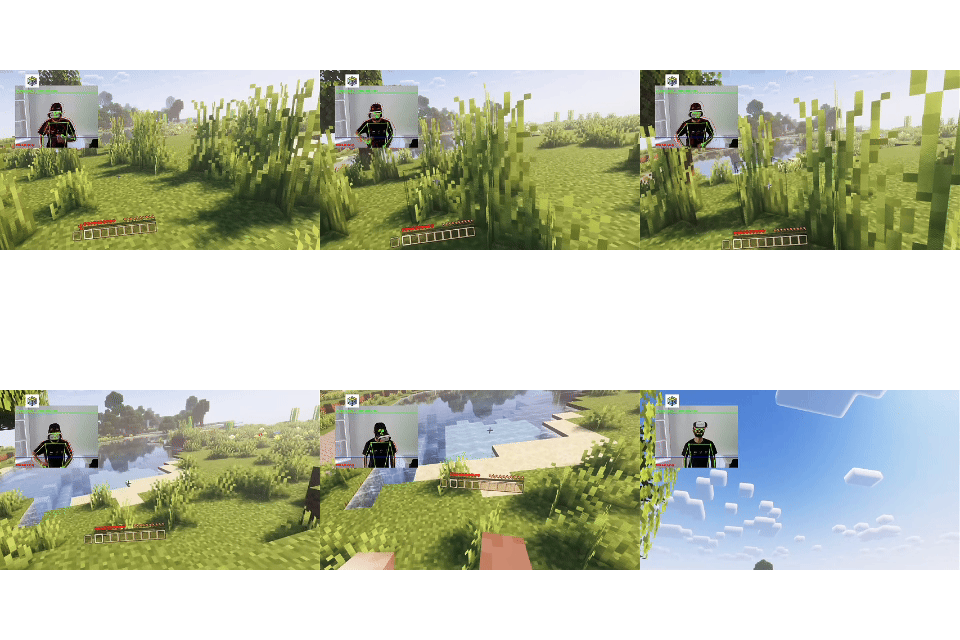
🎬GIF — Detección de poses de Appromove: esqueleto sobre el cuerpo del jugador
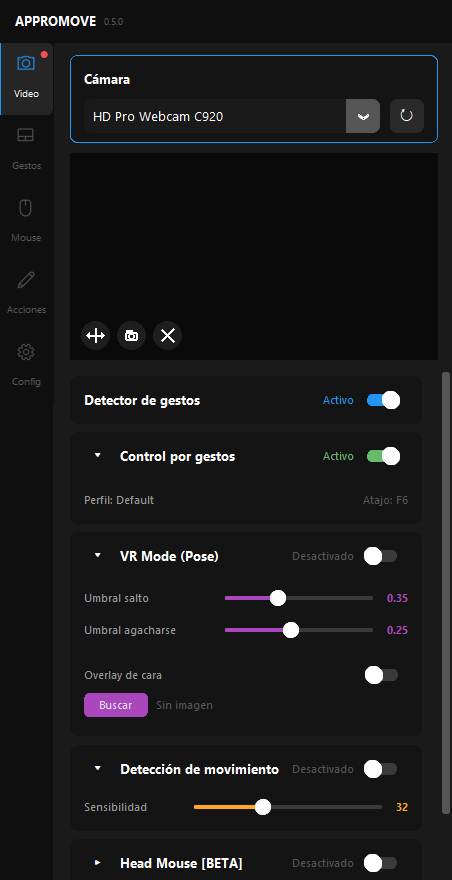
Con Appromove puedes asignar cualquier movimiento corporal a cualquier tecla o acción del ratón — caminar en el sitio para avanzar, saltar para el salto del juego, agacharte, levantar un brazo para atacar, inclinar la cabeza para rotar la cámara. La configuración lleva unos minutos dentro de la interfaz visual de la app, y una vez lista tu habitación se convierte en zona VR: abre Minecraft, ponte el visor y empieza a moverte.
🎮Captura — Panel de configuración de gestos y poses de Appromove
⚡ Configuración rápida: Appromove guarda los mapeos de teclas por juego. Configúralo una vez para Minecraft y la próxima vez solo le das a play.
🎬GIF — Jugando Minecraft con Appromove: minando, colocando bloques, saltando
Pruébalo tú mismo — gratis
Appromove es gratis para Windows 10/11. No necesitas escribir una sola línea de código — solo instala, abre y apunta tu webcam.
¿Listo para jugar sin teclado?
Descarga Appromove gratis — Windows 10/11, cualquier webcam. Sin hardware extra.
Para los curiosos: ¿cómo funciona la detección de movimiento?
Si quieres entender qué hay detrás — o construir tu propia versión — el núcleo es sorprendentemente sencillo. OpenCV (Open Source Computer Vision Library) permite capturar frames de cualquier webcam y compararlos píxel a píxel.
La idea básica es la sustracción de frames: toma dos frames consecutivos, conviértelos a escala de grises y calcula la diferencia absoluta. Donde los píxeles cambiaron, algo se movió. Aplica un umbral para ignorar el ruido y cuenta los píxeles que cambiaron. Si el total supera un valor que tú defines — eso es tu disparador de acción.
# Pseudocódigo — la idea central
gray1 = escala_grises(frame1)
gray2 = escala_grises(frame2)
diff  = abs(gray1 - gray2)
mask  = diff > UMBRAL          # píxeles que cambiaron
score = contar(mask)           # cuántos píxeles se movieron

if score > UMBRAL_CAMINAR: presionar("W")
if score > UMBRAL_SALTO:   presionar("Space")
Eso es básicamente todo. El reto está en ajustar los umbrales, gestionar los cambios de iluminación y decidir qué zona del frame monitorizar. Si quieres experimentar, las librerías son opencv-python y keyboard — un pip install de distancia.
Colabora con nosotros
Un juego que quieras que soporte Appromove, feedback sobre la app, o tu setup VR — cuéntanos.
✓ ¡Recibido! Te respondemos pronto.
More articles
Más artículos
Tutorial
Play Chrome's Dinosaur game with real jumps
Juega al dinosaurio de Chrome con saltos reales
Coming soon
Próximamente
Tutorial
Control games with your gaze using just a webcam
Controla juegos con la mirada usando solo una webcam
 GIF — Motion detection visualized: frame comparison showing moving pixels
 GIF — VR mode demo: player wearing DIY headset, moving in Minecraft
 GIF — Appromove pose detection: skeleton overlay showing tracked body points
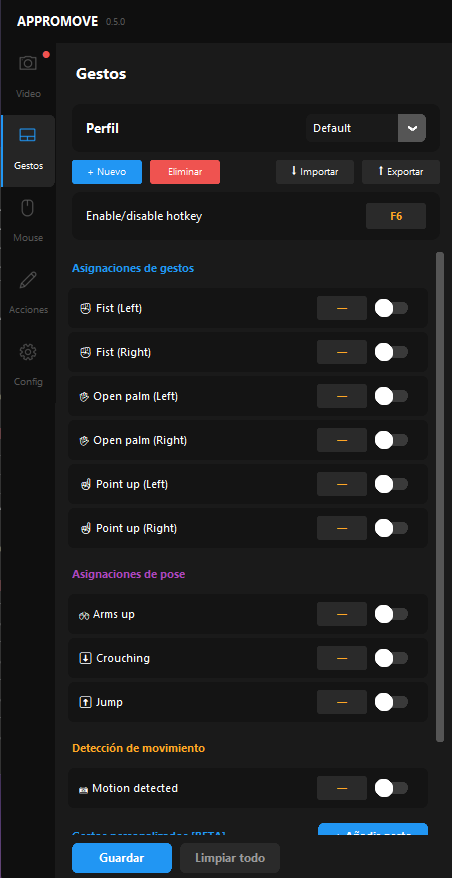 Screenshot — Appromove gesture & pose mapping panel
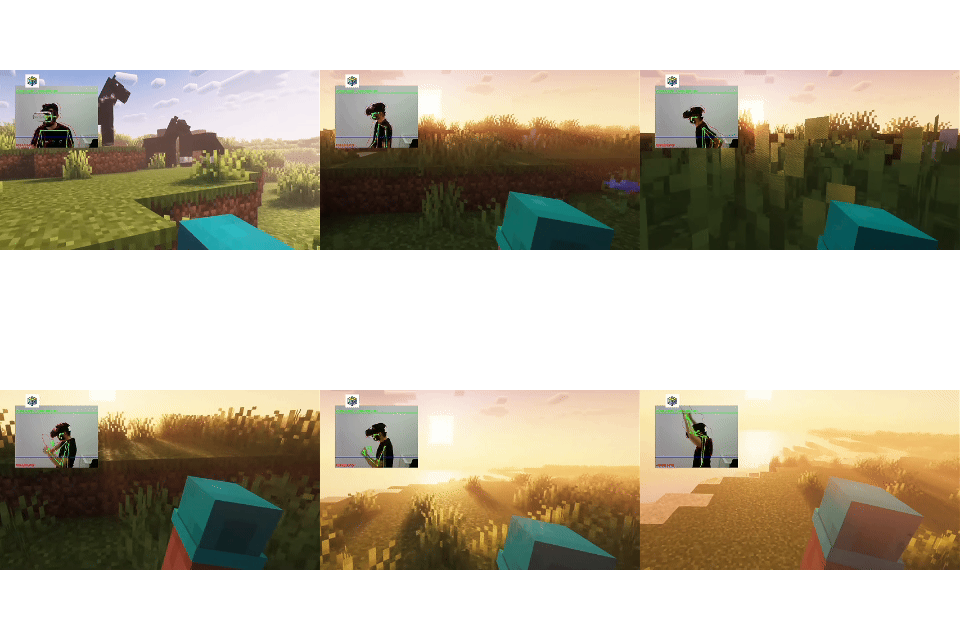 GIF — Playing Minecraft with Appromove: mining, placing blocks, jumping